Study Panel
The Study Panel includes studies related to the current patient. Studies are organized into three tabs:
- Anchor — The study or studies that have been selected for the primary read.
- Relevant Priors — Prior studies determined to be relevant to the anchor study or studies, surfacing the priors most pertinent to the current reading session. (selected by default)
- All — Every study associated with the patient's history, regardless of relevance to the anchor. (not selected by default)
Thumbnail Rail
The layout links two coordinated views of the same study set: the study selector on the left and the thumbnail rail across the top.
- Study Selector — Lists each available study with an indicator of its type (anchor, relevant prior, or a study from the patient jacket), along with the date the study occurred and its study description.
- Thumbnail Rail — For each study, a pill displays the same study type, date, and description, with all of that study's series thumbnails grouped beneath it.
- Scrolling — The scroll wheel moves horizontally across all thumbnails in the rail, letting the user page through every study and series in one continuous motion.
- Linked Navigation — Clicking a study's description in the study selector automatically scrolls the thumbnail rail to bring that study's pill and thumbnails into view, keeping the two views in context with each other for quick location.

The rail also supports the following:
-
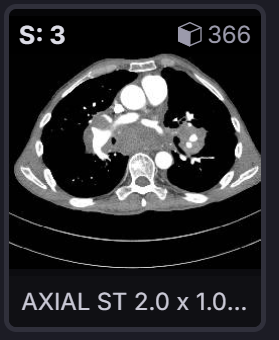
Each thumbnail displays the series number, a brief series description (e.g., "Topogram 1.0 Tr20," "AXIAL ST 2.0 x 1.0..."), and an image count badge indicating the number of images in that series.
-
A Relevant toggle filters the rail to show only series considered clinically relevant for comparison, hiding secondary or supporting series.
-
A Collapse control allows a user to collapse the study selection list to make more room for the thumbnail rail. Selecting Expand will expand the window to the longest study description in the list.
-
The user is able to drag a thumbnail into an available viewport, which loads that series into the active viewport.
Note: A viewport must be available (not locked or occupied by a required series) to accept a dropped thumbnail.
Settings
-
Quick Drop — When enabled, dragging a thumbnail shows a floating preview of every available viewport across all monitors, allowing the user to drop the thumbnail into a viewport with minimal movement.
Note: Quick Drop is enabled by default.
-
Thumbnail Sizing — Allows the user to change the size of the thumbnails, scaling from 70% of the default size up to 150% of the default size.
-
Placement — Allows the user to place the thumbnail rail at the top, left, or bottom of the screen.
-
Multi-Monitor Behavior
-
Rails Across Monitors — Determines how the rail is shown across multiple monitors: on the primary monitor only, with each monitor given its own independent rail, or spanned as one shared rail across all monitors.
-
Span Rail Placement — When Rails Across Monitors is set to Span, determines whether the shared rail sits above every monitor's toolbar, or between the toolbars and the first row of viewports.
Note: This setting only applies when Rails Across Monitors is set to Span.
-
Hide Toolbar on Secondary Monitors — Removes the toolbar from additional monitors for a cleaner diagnostic view.
-

DisplaySet Warning Messages
The following warnings may appear when the system encounters issues with a series or display set. Each message indicates a specific condition that may affect how images are displayed or which tools are available.
No Valid Instances Found in Series
The series contains no displayable image instances. This typically occurs when a series was transferred incompletely or contains no image data. The series will appear as an unsupported thumbnail and will not be displayed by default.
DisplaySet Has Missing Position Information
One or more frames in the series are missing spatial position data (ImagePositionPatient). The images may still be viewable, but spatial accuracy cannot be guaranteed. MPR and 3D reconstructions may not be available.
DisplaySet Is Not a Reconstructable 3D Volume
The series cannot be reconstructed into a 3D volume. This may be due to inconsistent geometry, insufficient image count, or non-standard acquisition parameters. MPR functionality will be unavailable for this series.
Multi-Frame DisplaySet Has No Pixel Measurement Information
The multi-frame series is missing pixel spacing data (PixelSpacing or ImagerPixelSpacing). Physical measurements such as length or area may be inaccurate or unavailable. MPR will be disabled.
Multi-Frame DisplaySet Has No Orientation Information
The multi-frame series is missing image orientation data (ImageOrientationPatient). The system cannot determine how the frames are spatially oriented, which disables MPR and may affect display accuracy.
Multi-Frame DisplaySet Has No Position Information
The multi-frame series is missing positional data (ImagePositionPatient). Without position information, the system cannot spatially locate frames relative to one another. MPR will be disabled.
DisplaySet Has Inconsistent Dimensions Between Frames
Frames within the series have differing row or column dimensions. The series cannot be reconstructed into a uniform volume. MPR will be disabled.
DisplaySet Has Frames With Inconsistent Number of Components
The number of color components (SamplesPerPixel) varies between frames in the series. This indicates a non-uniform dataset that cannot be reliably reconstructed. MPR will be disabled.
DisplaySet Has Frames With Inconsistent Orientations
The image orientation varies between frames in the series. This prevents accurate 3D reconstruction or MPR rendering, as the frames are not consistently aligned.
DisplaySet Has Inconsistent Position Information
Frame positions deviate significantly from the expected regular spacing pattern. The series geometry is irregular, which may affect reconstruction accuracy. MPR will be disabled.
DisplaySet Has Duplicated Position Information on Different Slices
Two or more frames share the same spatial position. This is likely a data acquisition error and may cause measurement inaccuracies. MPR is disabled for this series due to a potential patient safety risk.
DisplaySet Has Missing Frames
A gap has been detected between consecutive frames, indicating that one or more frames are missing from the series. Measurements derived from this series may be inaccurate. MPR is disabled for this series due to a potential patient safety risk.
DisplaySet Has Irregular Spacing
The spacing between consecutive frames is inconsistent but does not indicate a large gap. The series may still be viewable, but 3D reconstruction and MPR will be unavailable due to unreliable geometry.
Image Cannot Be Displayed — Unsupported DICOM SOP Class
The series uses a DICOM SOP Class that is not supported by the viewer. The series will appear as an unsupported thumbnail and will not be displayed by default. Contact your administrator if access to this series type is required.
Image Cannot Be Displayed — Unsupported Compression Type
The series uses a transfer syntax (compression format) that is not supported by the viewer. The series will appear as an unsupported thumbnail. A different viewing application or decompression tool may be required to access this series.
Image Cannot Be Displayed — Invalid Image Attributes
The series contains an unsupported bit depth value. The viewer cannot render images with this bit allocation. The series will appear as an unsupported thumbnail and will not be displayed by default.
Image Load Error
An error occurred while loading the image in the viewport. This is typically caused by a corrupted file, a network interruption, or an incompatibility encountered during rendering. Refreshing the study or reloading the series may resolve the issue.