Viewport
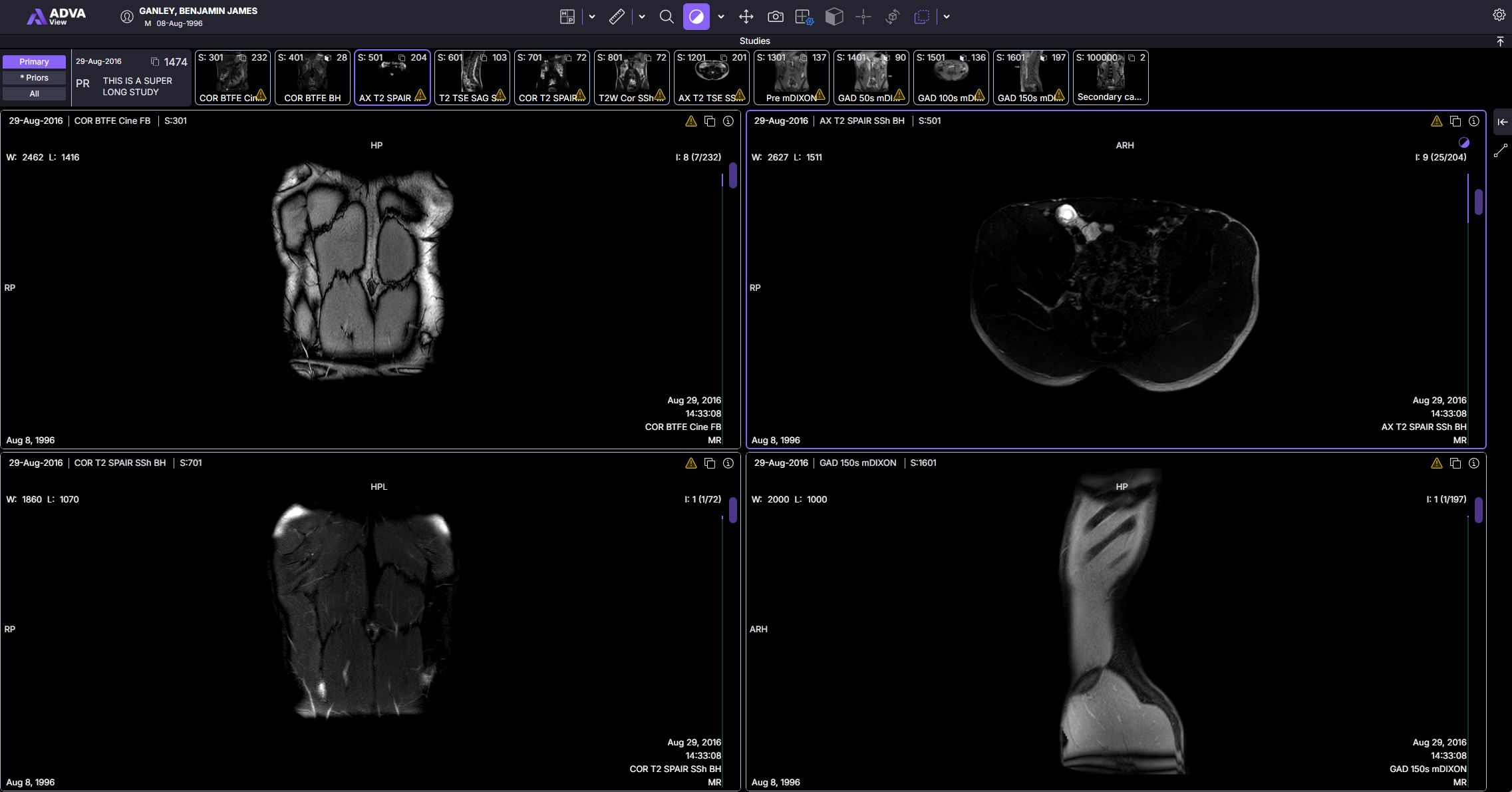
The Viewport is the primary display area within the Diagnostic Viewer where medical images are rendered for review and analysis. Each viewport displays a single image series or volume and provides access to image manipulation and measurement tools.
Functionality
Within a viewport, users can:
- View DICOM images in stack or volumetric formats
- Adjust image presentation using tools such as window/level, zoom, and pan
- Scroll through image slices using the mouse, keyboard, or scroll wheel
- Apply advanced visualization modes such as Maximum Intensity Projection (MIP) or Multiplanar Reconstruction (MPR) (if enabled)
- Create and manage annotations and measurements
- Synchronize image position and navigation across multiple viewports
Active Viewport
When multiple viewports are displayed, one viewport is designated as the active viewport. The active viewport is typically indicated by a visual border or highlight.
User interactions such as tool application, scrolling, and measurements apply only to the active viewport unless synchronization is enabled.
Layout and Interaction
- Viewports can be arranged in various layouts (e.g., 1×1, 2×2, or custom configurations)
- Users can assign different image series to each viewport
- Viewports may be synchronized to maintain consistent orientation, zoom level, or slice position across series
The availability of certain tools and visualization modes within a viewport depends on the modality of the image data and system configuration.
For comparative review, use multiple synchronized viewports to display current and prior studies side by side. Current studies are highlighted with a purple viewport border, while prior studies are highlighted with a teal viewport border, making it easy to distinguish between them at a glance.
Changing Series on Display
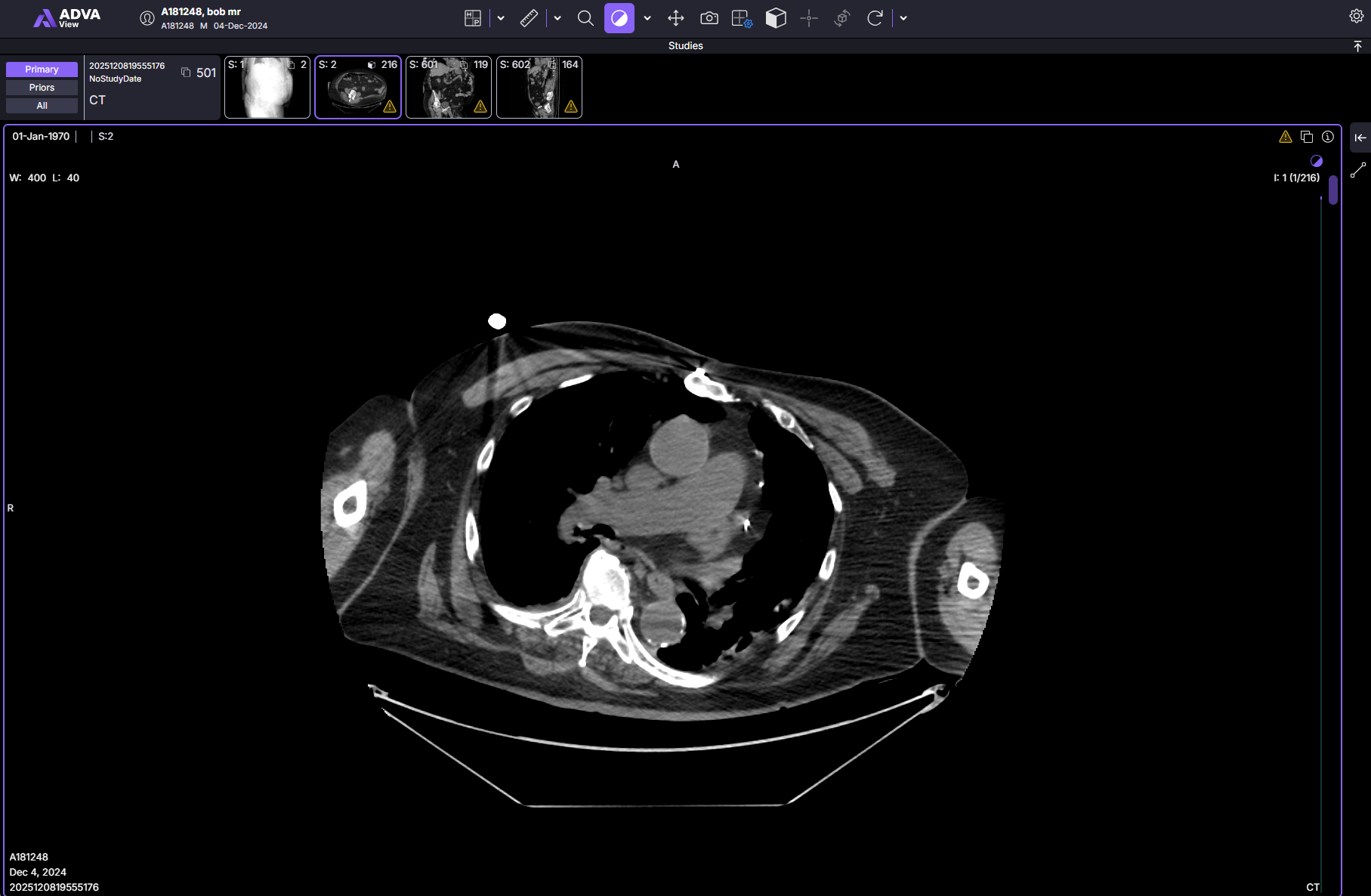
Double-clicking or dragging and dropping the desired series from the series panel (thumbnails) will change the series displayed in the viewport.
Changing Layout
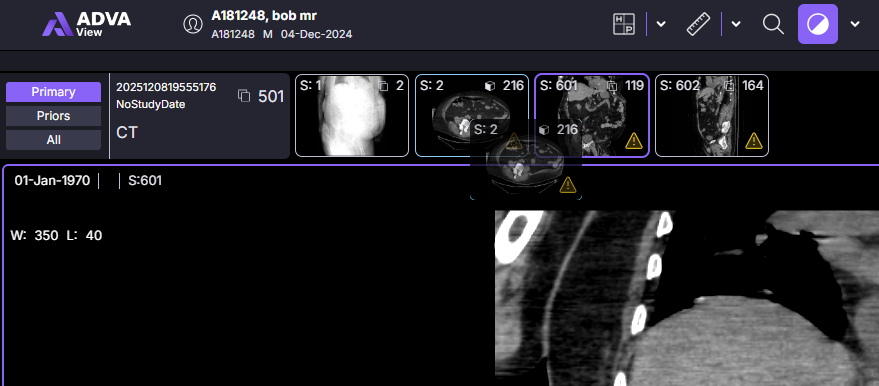
The Grid Layout tool allows you to change the layout of the viewer by selecting one of the common layouts or a custom layout.
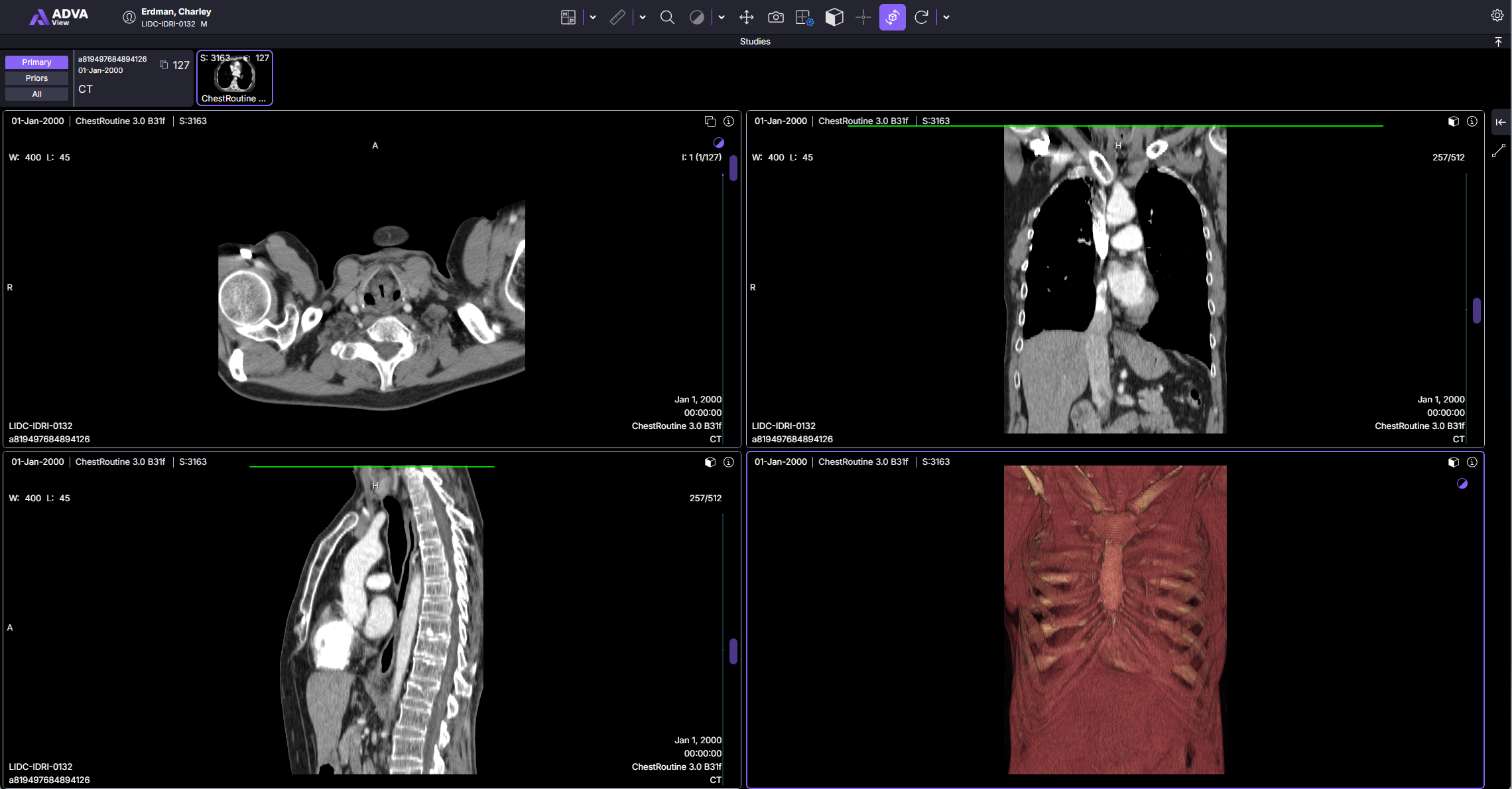
After changing the layout grid, you can select studies for each new viewport by dragging and dropping studies into the viewport.
After changing the layout from 1x1, each viewport is labeled with a letter that matches its corresponding series section in the study list.