Measurement Panel
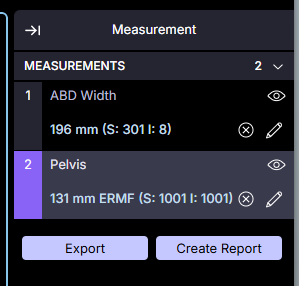
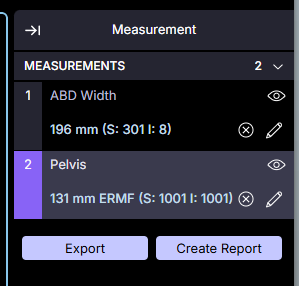
In the main viewing area the far right panel is the Measurement Panel.
- The Measurement Panel displays all tracked measurements for the active study
- The panel can be expanded or hidden by clicking the arrow next to Measurements
Only measurements associated with the active study are displayed. Selecting a different study will update the contents of the Measurement Panel.
Labeling Measurements
You can label or edit measurement names in the following ways:
- Hover over a measurement in the panel and select the edit icon
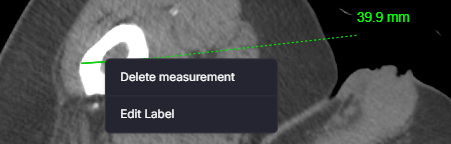
- Right-click a measurement in the viewport to label or relabel it
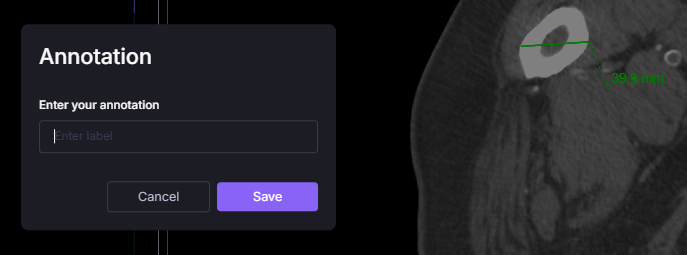
Entering an annotation will create a label for the measurement.

Deleting a Measurement
Measurements can be deleted using either method:
- Right-click the measurement in the viewport and select Delete measurement
- Click the delete icon next to the measurement in the Measurement Panel
Deleting a measurement permanently removes it from the study and cannot be undone.

Navigating Between Measurements
The top of the viewport contains navigation arrows that allow you to move between measurements.
- Use arrows to cycle through existing measurements
- The active measurement will be highlighted
Exporting Measurements
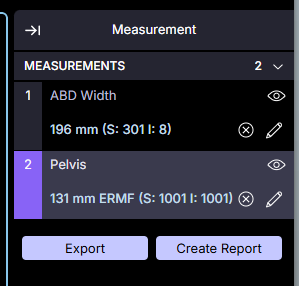
Clicking Export in the Measurement Panel will generate a .csv file containing all measurements.
Exported measurement data can be used for reporting, analysis, or integration with external systems.
Creating a DICOM Structured Report (SR)
You can create a DICOM Structured Report (SR) by clicking Create Report in the Measurement Panel.
- This generates a structured report containing measurement data